Site Configuration
Site Configuration
To help build a graphical picture of your global infrastructure we need to supply Network Manager with some additional details about the on-premises infrastructure. In this section we will create the following resources:
Site - This contains information about the physical sites we are connecting into AWS, for example datacentre details. Link - This contains details about the link capabilities we are using to connect to AWS, e.g. link speed and provider name. Devices - This stores details about the devices we are using to terminate our network connections from AWS into our on-premises facilities.
-
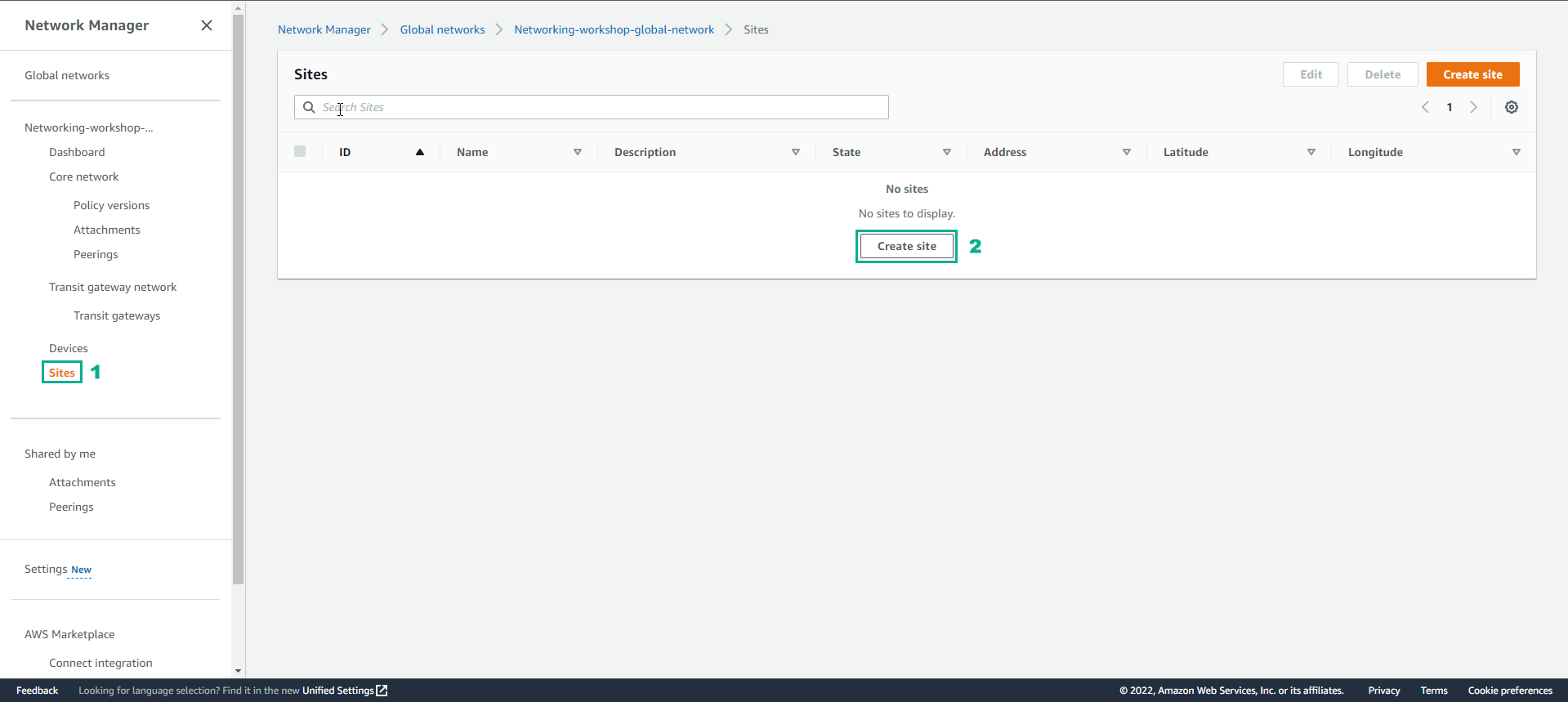
In the Network Manager interface
- Select Site
- Select Create site
-
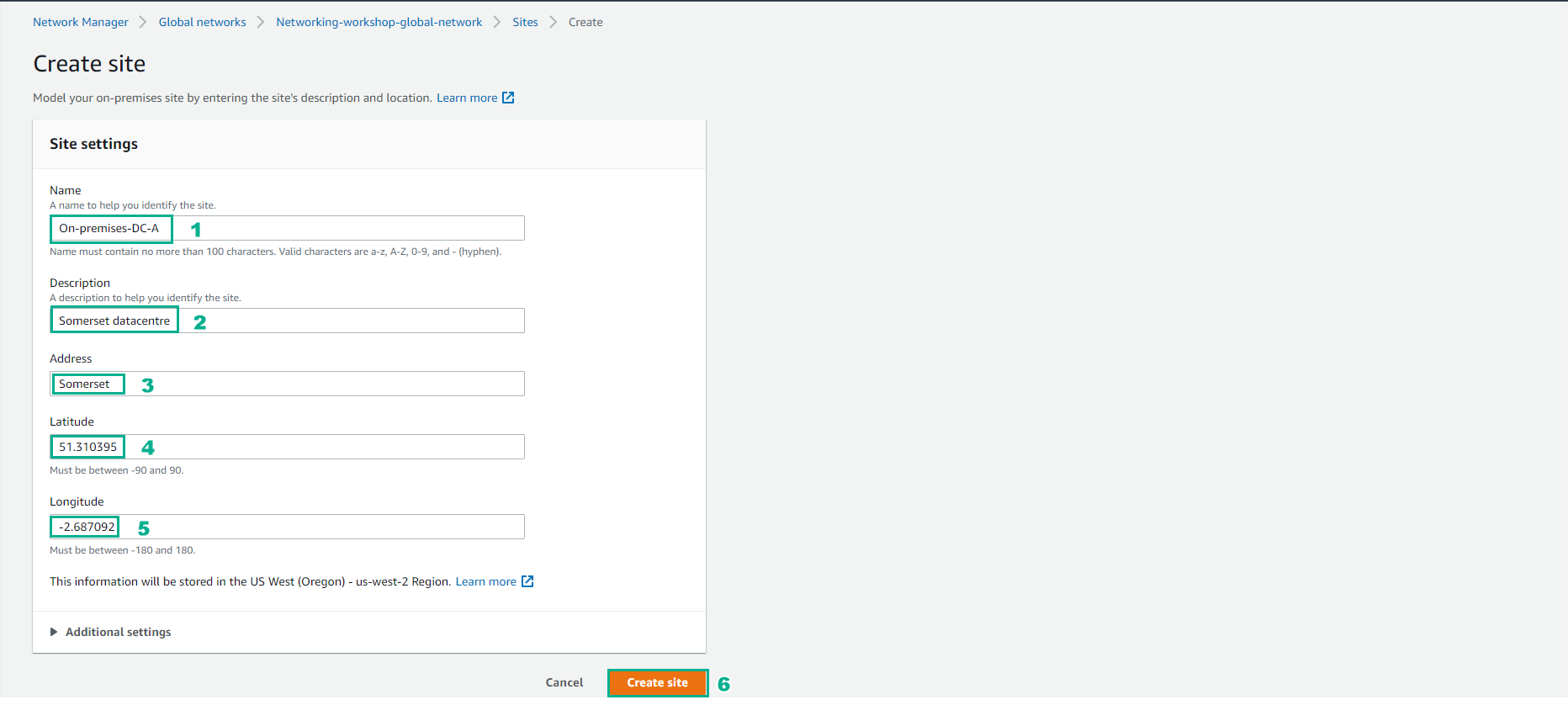
In the Create site interface
- Perform site configuration, Name enter On-premise-DC-A
- Enter Description
- Address, hold Somerset
- About Latitude and Longitude you enter your coordinates.
- Select Create Site
- Create successful site.

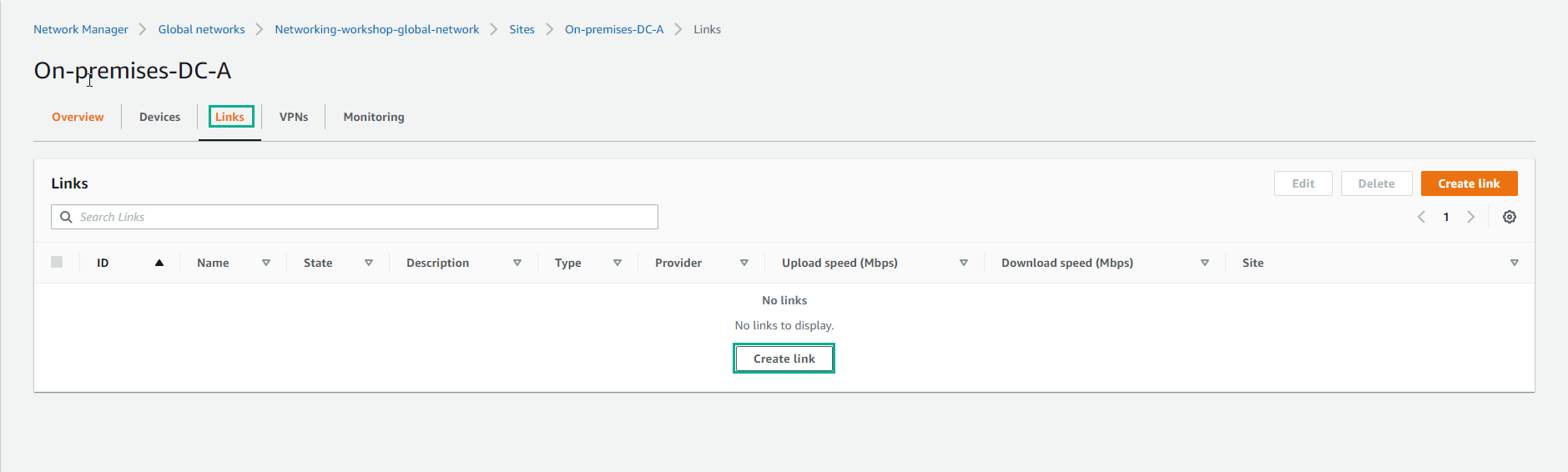
- Go to Site details, select Links and select Create link
-
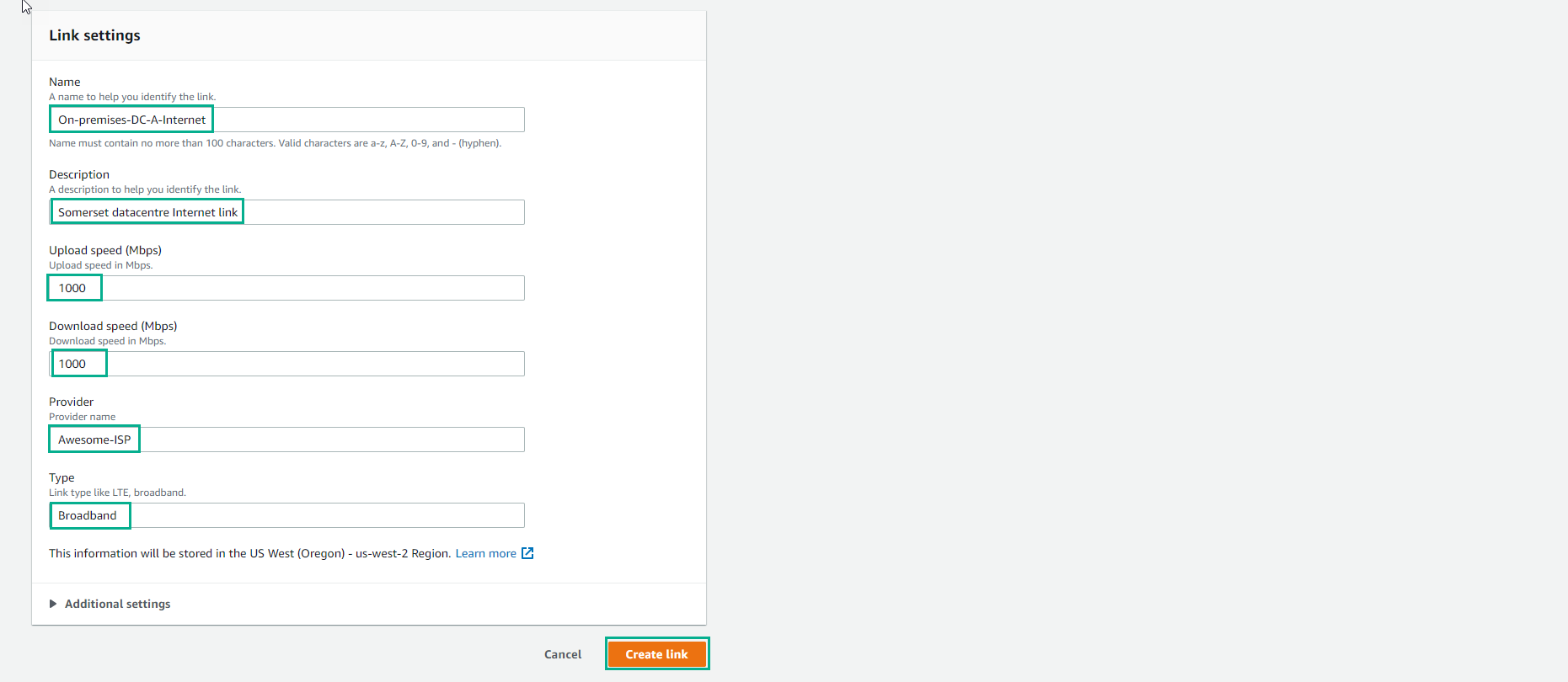
Configure links
- Enter Name
- Enter Description
- Upload speed (Mbps) enter 1000
- Download speed (Mbps) enter 1000
- Enter Provider as Awesome-ISP
- Type is Broadband
- Select Create link
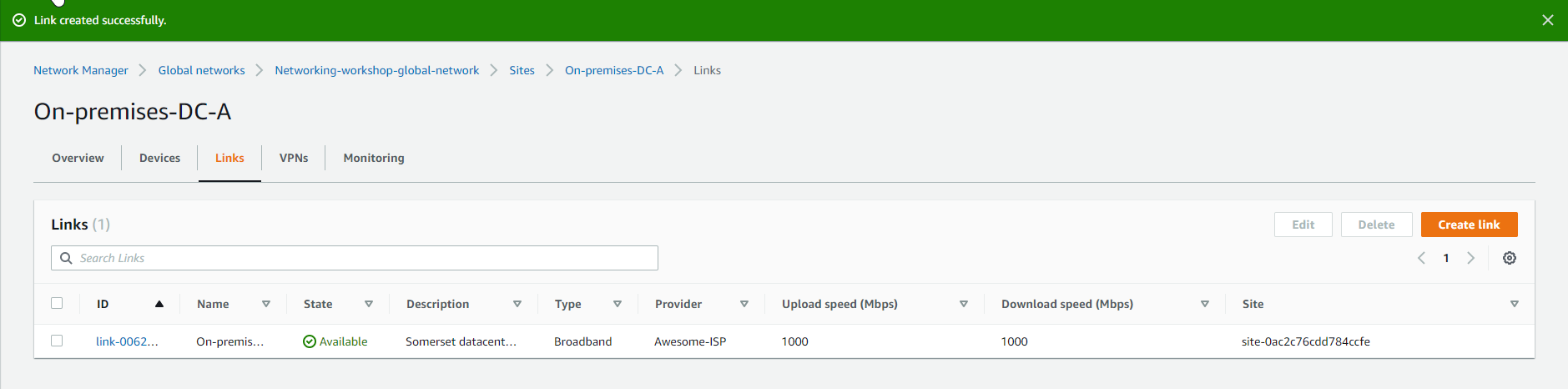
- Create successful links.
-
After configuring Site and Links, next we configure Devices
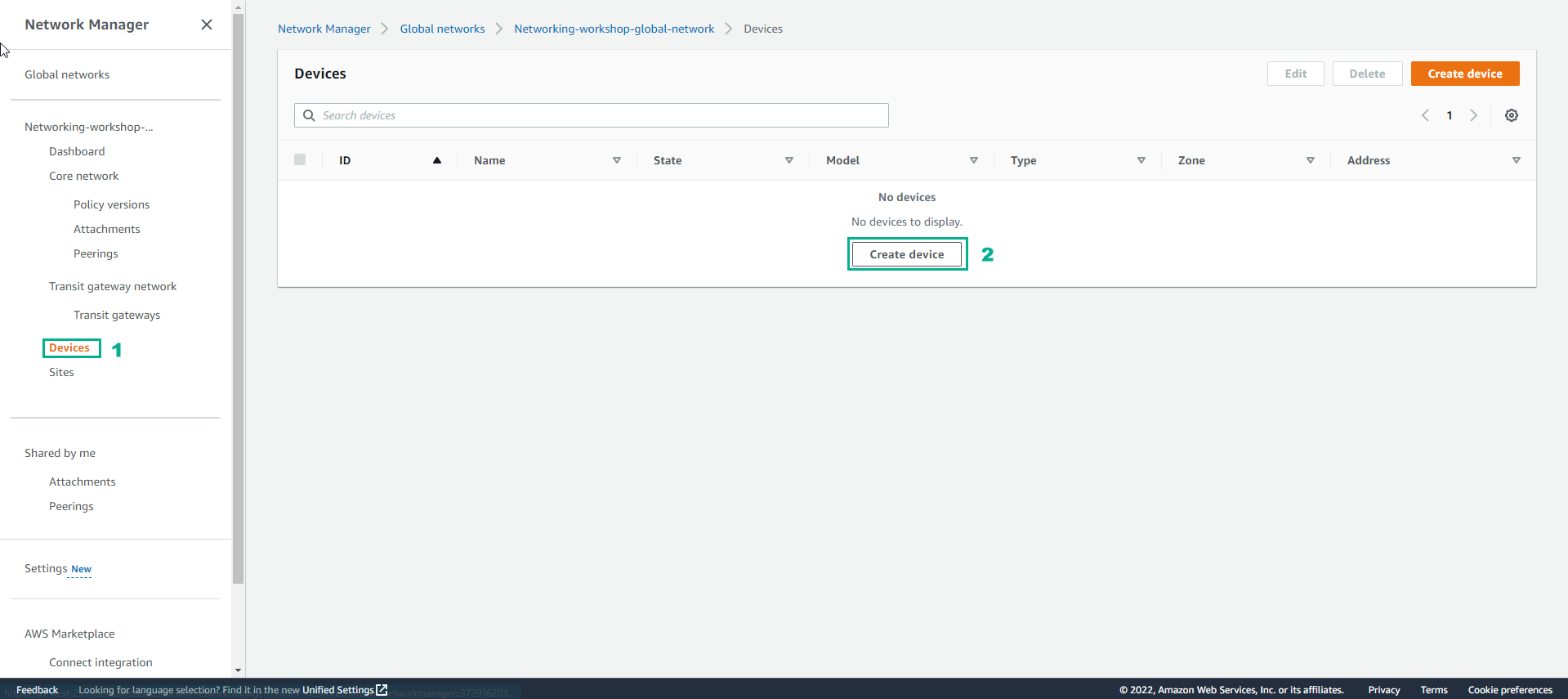
- In the Network Manager interface, select Devices
- Select Create devices
-
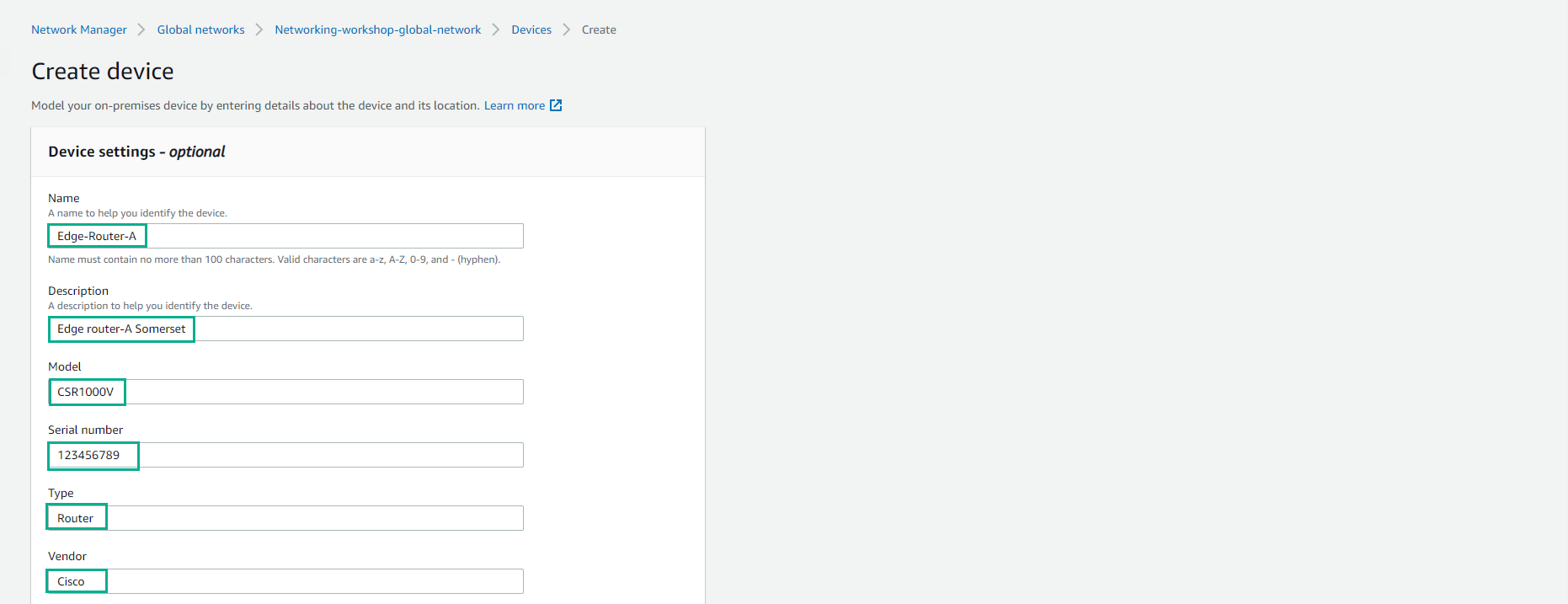
Configure Devices
- Name, enter Edge-Route-A
- Enter Description
- Select Model as CSR1000V
- Serial number is 123456789
- Type, select Router
- Vendor, select Cisco
-
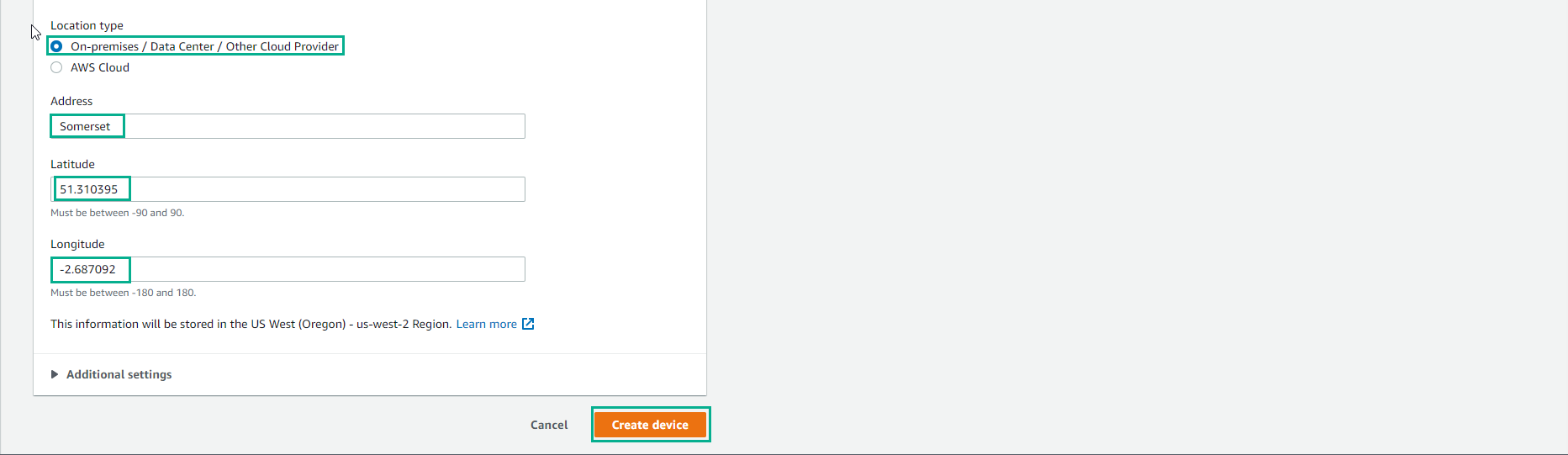
For Location type
- Select On-premise/Data Center/Other Cloud Provider
- Address, select Somerset
- Enter Latitude and Longitude
- Select Create device
- Configure device successfully. Then select Associate site
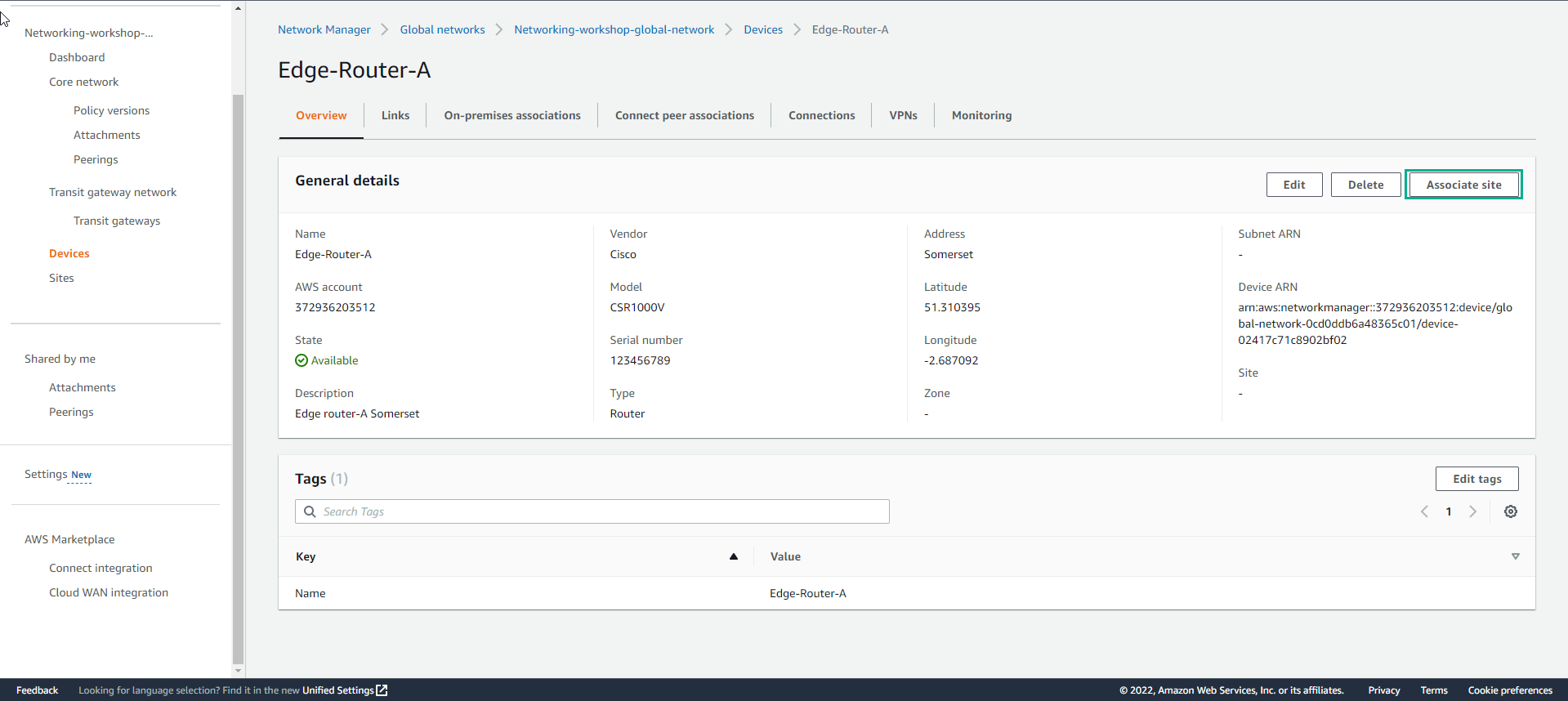
-
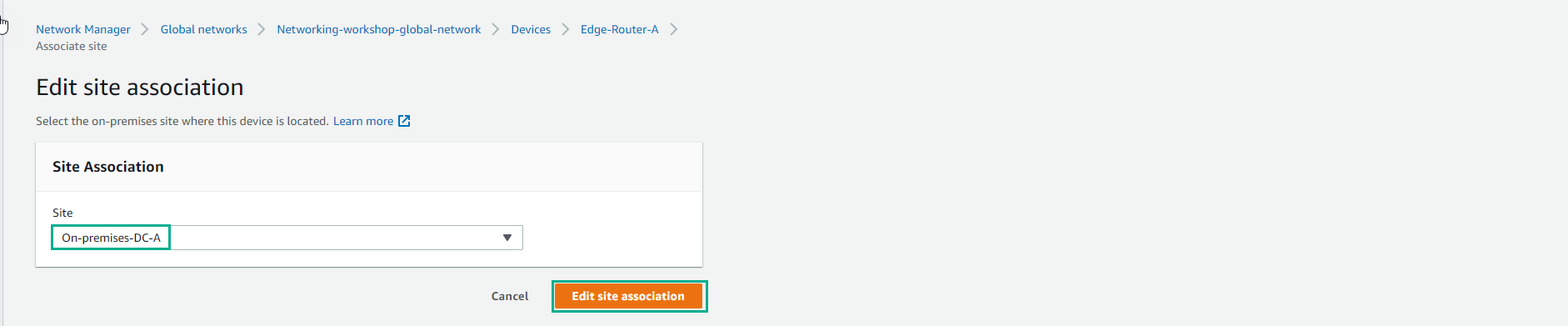
In the Edit site association interface
- Select site created.
- Select Edit site association
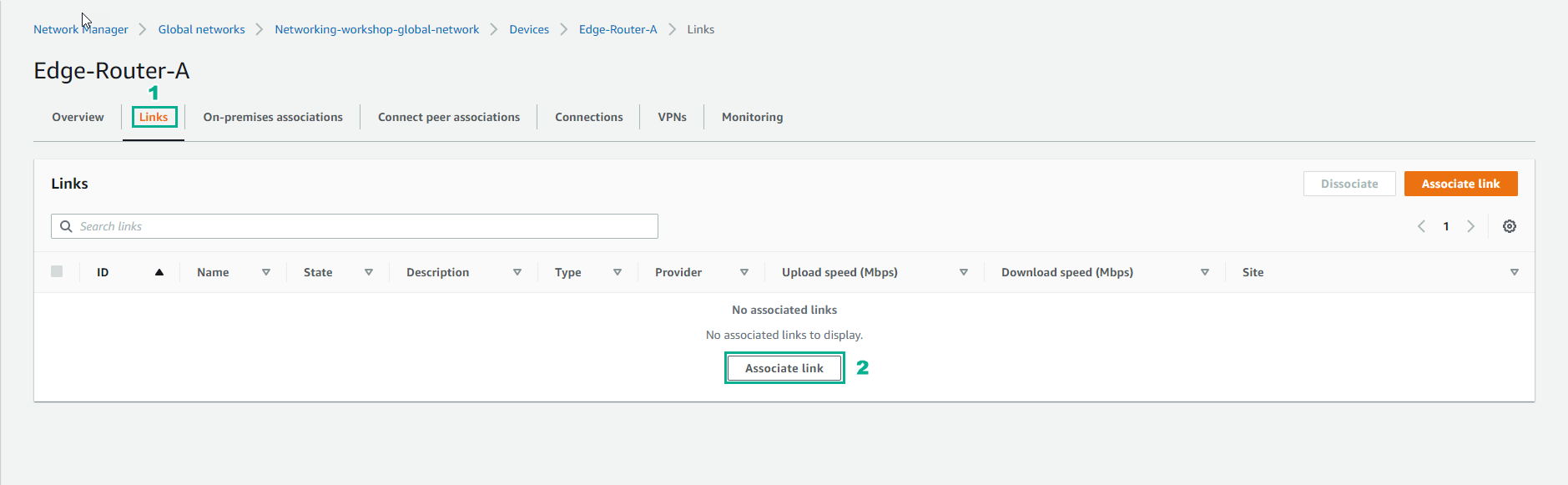
- Select Links
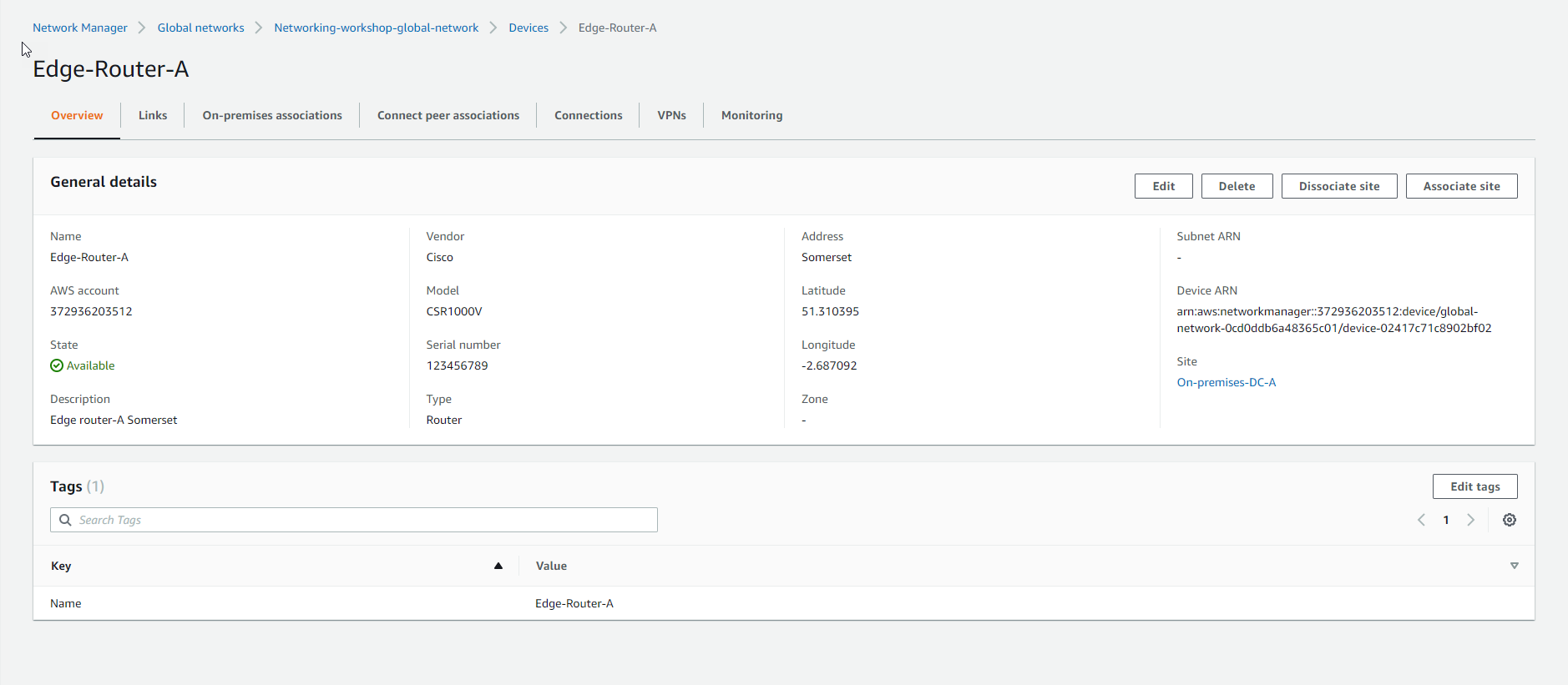
- Implement Associate link
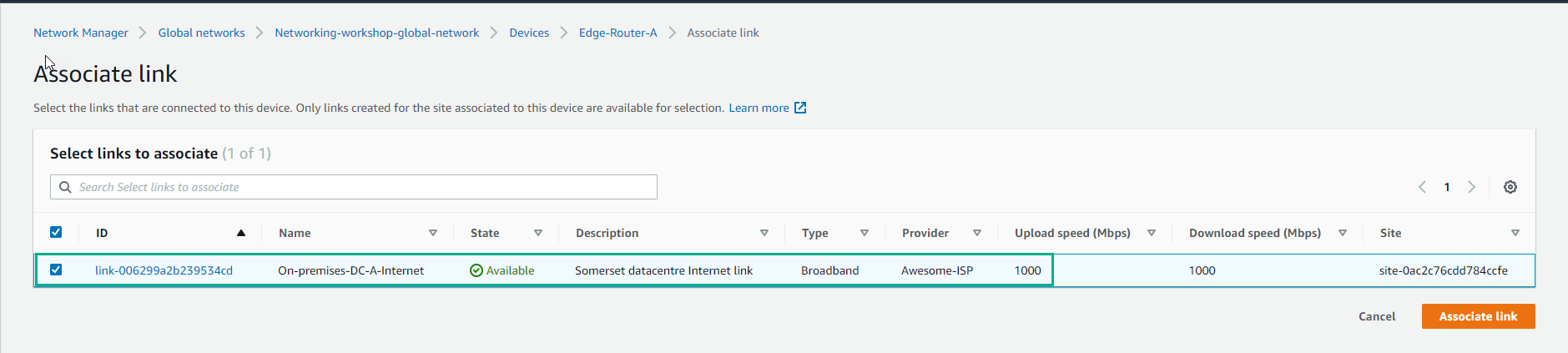
- Select the created link and select Associate link
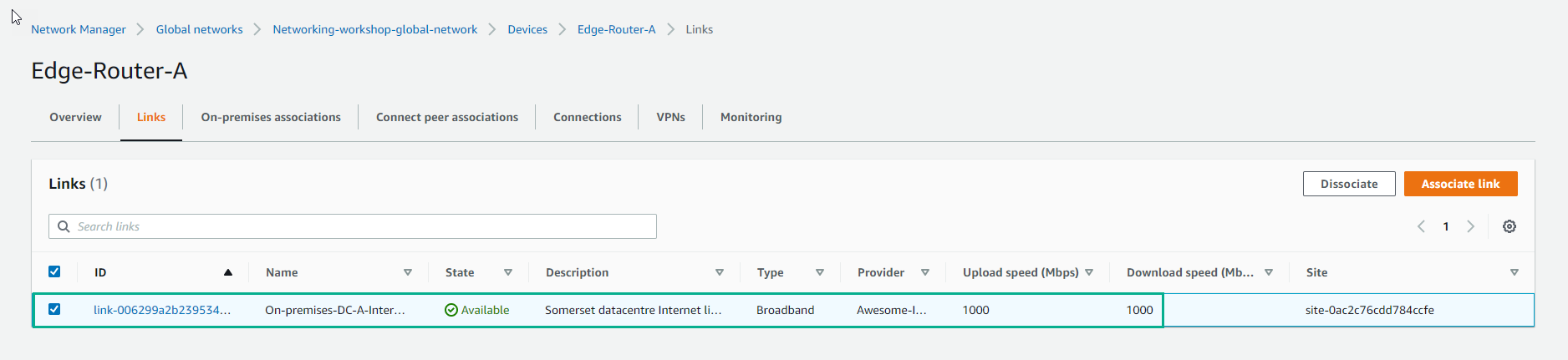
- Associate link successful.
-
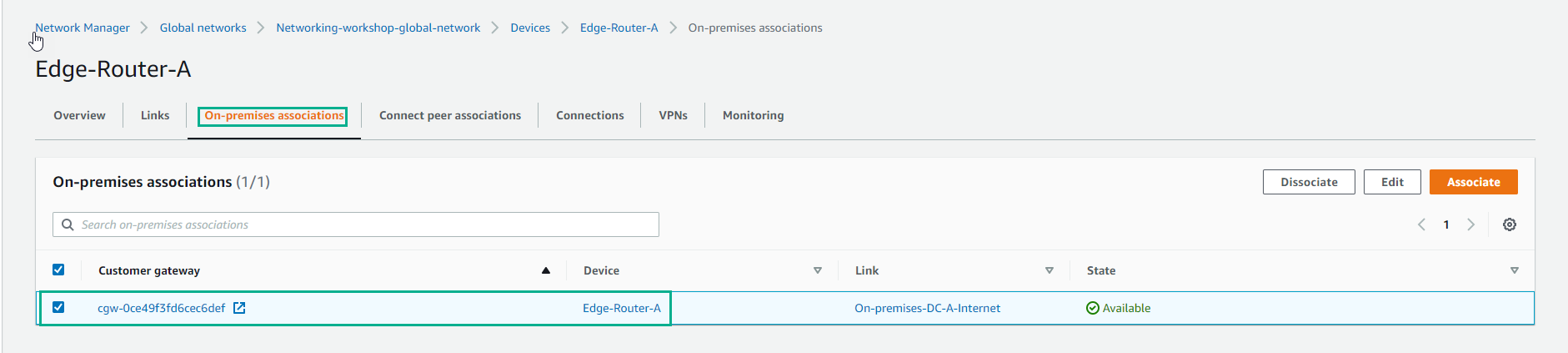
In the EdgeEdge-Router-A interface
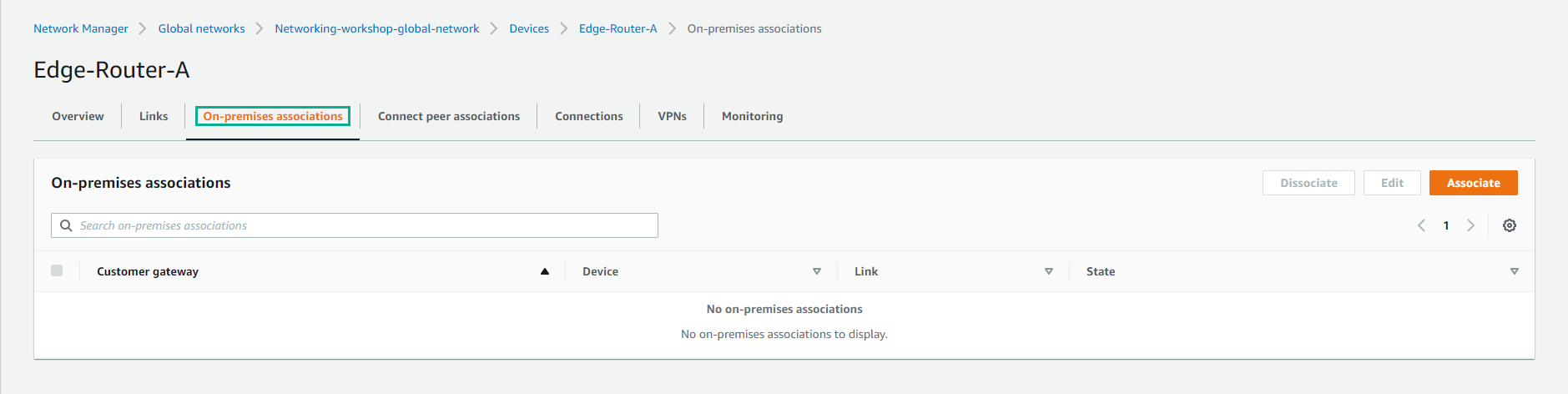
- Select On-premise associations
- Select Associate
-
In the Create on-premises association interface
- Select Customer gateway
- Select link
- Select Create on-premises association
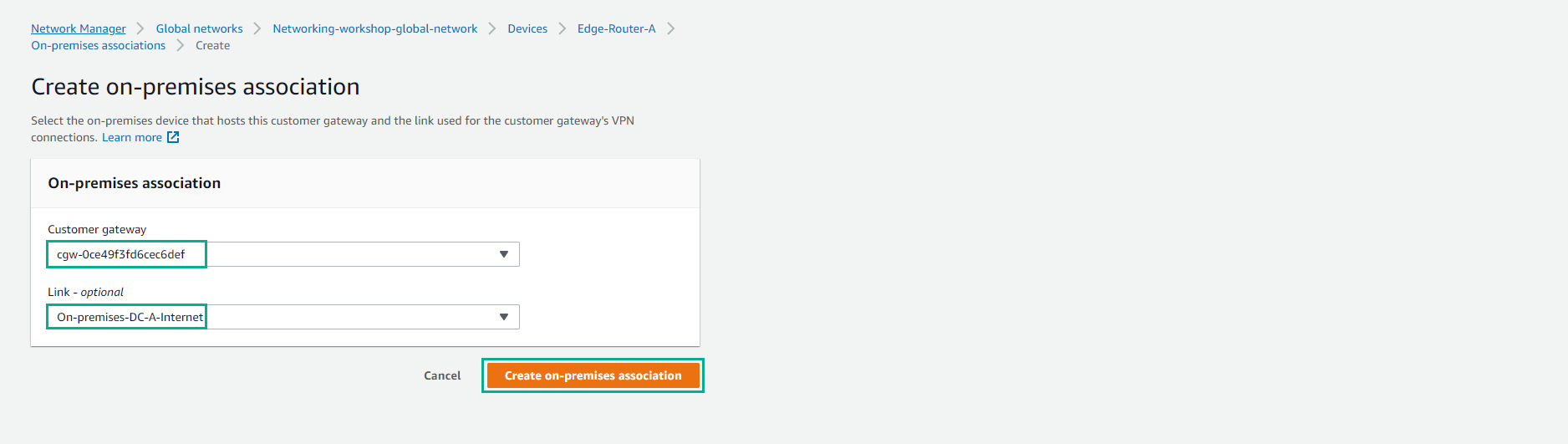
- Complete on-premises association creation